
What Is MAGI2 Omni-Reference Conditioning?
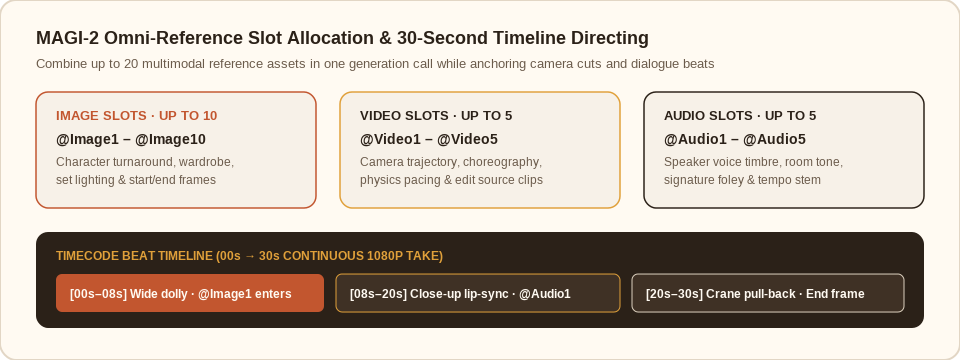
In single-image-to-video generators, keeping a protagonist's face, wardrobe, voice timbre, and camera blocking consistent across a 20-second or 30-second multi-cut scene is notoriously fragile. MAGI2 omni-reference conditioning solves this inside Sand AI's unified single-stream backbone by accepting up to 20 multimodal reference assets in a single native request:
- Up to 10 Image References (
@Image1–@Image10): Anchor character faces, multi-angle wardrobe sheets, hero props, set architecture, and lighting mood boards. - Up to 5 Video References (
@Video1–@Video5): Transfer camera trajectories (dolly zoom, handheld sprint, orbital pan), dance or stunt choreography, and source footage for targeted timeline editing. - Up to 5 Audio References (
@Audio1–@Audio5): Guide speaker vocal timbre for lip-synced dialogue, signature sound effects, or rhythmic tempo stems.
Because all 20 reference streams tokenize into the same MagiMoE context alongside your text prompt, you can write natural cross-modal instructions in our MAGI2 prompt generator such as: "@Image1 walks into the courtyard from @Image2 matching the handheld camera pace of @Video1, then speaks in the voice of @Audio1."
How to Budget Your 20 Reference Slots Without Confusing the Model
Feeding 20 conflicting images into a prompt degrades visual sharpness just like contradictory director notes confuse a film crew. High-scoring MAGI2 shots follow a disciplined 4-to-7 asset slot budget:
| Slot Role | Recommended Asset Count | Best Preparation Practice |
|---|---|---|
| Lead & Supporting Cast | 1–3 Images (@Image1–@Image3) |
Use crisp, neutral-lit portraits or 3-view character sheets without heavy motion blur. |
| Environment & Prop Lock | 1–2 Images (@Image4–@Image5) |
Match lighting direction (e.g., dusk tungsten vs overcast daylight) to your text prompt. |
| Camera / Motion Guide | 1 Video (@Video1, 3s–8s) |
Trim reference video strictly to the movement segment you want MAGI2 to emulate. |
| Voice & Acoustic Stem | 1–2 Audio Clips (@Audio1–@Audio2) |
Supply clean, dry 5s–10s vocal samples free of reverb or competing music beds. |
Start Frame and End Frame Anchoring Rules
Alongside omni-references, MAGI2 supports explicit start frame (start_image_url) and end frame (end_image_url) conditioning across all six native aspect ratios (16:9, 9:16, 21:9, 1:1, 4:3, and 3:4):
- Match Exact Aspect Ratios Before Upload: If your generation target is
21:9anamorphic scope, crop both your start and end keyframes to21:9beforehand. Supplying a1:1square start frame for a16:9clip forces aspect-ratio stretching or unintended edge hallucination. - Allow Sufficient Seconds for Large Spatial Transitions: Morphing from an exterior wide shot (
start_image_url) to an interior close-up (end_image_url) in 4 seconds causes unnatural fast-forwarding. Give major camera travel or scene cuts 10 to 20 seconds and script an explicit mid-clip cut ([06s-07s] Hard cut through doorway). - Sync Spoken Dialogue Length to Remaining Frames: When locking an end keyframe where the character's mouth is closed, finish any quoted lip-sync dialogue at least 1.5 seconds before the final timestamp so the expression settles naturally onto the end frame.
Ready to assemble a multi-reference script? Format your @Image, @Video, and @Audio tags directly in the MAGI2 prompt generator, estimate multi-take MAGI2 pricing before batch rendering, or return to the MAGI2 overview.